First, define what “not booting” means
A dark power LED, a failed program upload, and a blank serial monitor are different symptoms. The power LED may show only that voltage reaches part of the board. An upload failure may involve the computer connection rather than the microcontroller. A blank serial monitor may simply mean the program does not print anything, or that the monitor is using the wrong port or speed. Note exactly what happens when power is connected: which LEDs light, whether the computer detects a device, and whether the behavior changes after a reset.
Keep the investigation within low-voltage, accessible circuits such as a board powered by a suitable USB port or an approved battery supply. Do not open a mains-powered charger or work on exposed mains wiring. Disconnect power before moving jumpers, unplugging modules, or using a meter’s continuity setting. If a battery is damaged, swollen, or hot, stop using it. A hot board, smoke, or a burning smell is also a reason to disconnect power immediately rather than keep trying to boot.
Check the supply at the board
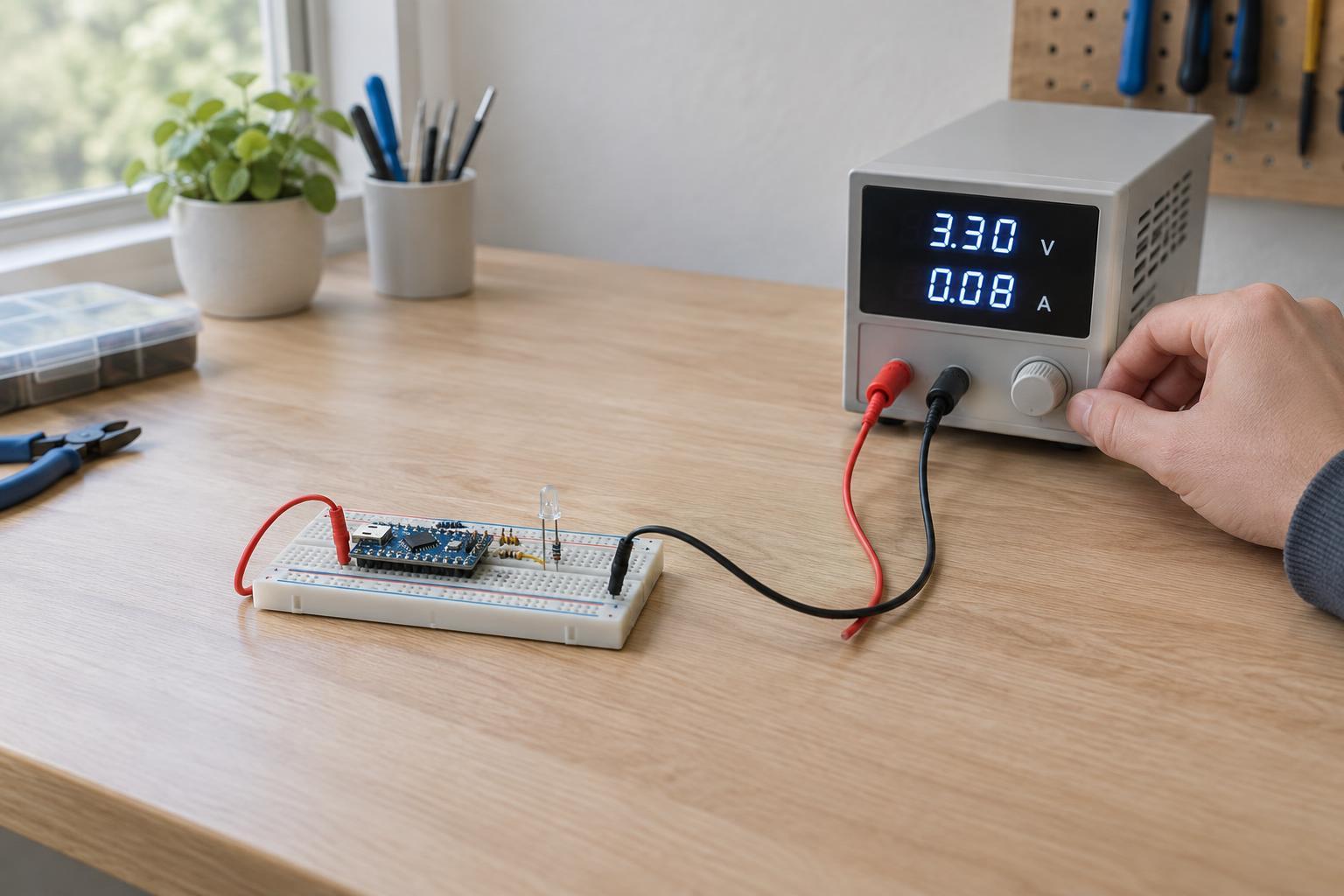
Start with a known-good power source and cable. Some USB cables provide power but have no data connections, which can make a working board appear unresponsive to a computer. Inspect the connector for looseness or damage. Remove shields, sensors, and other add-ons for the first test; an external circuit can overload a supply or pull a pin into an unintended state.
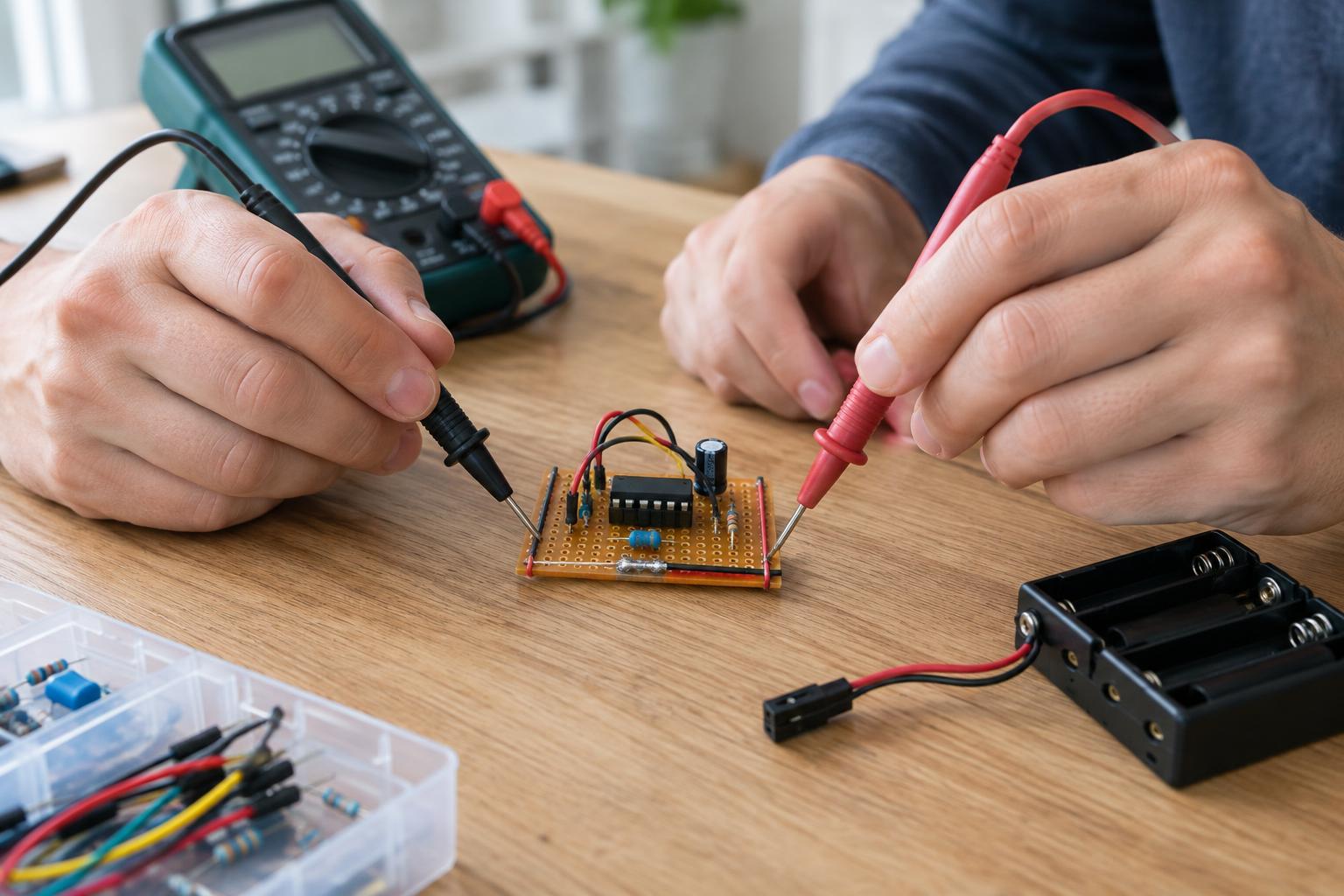
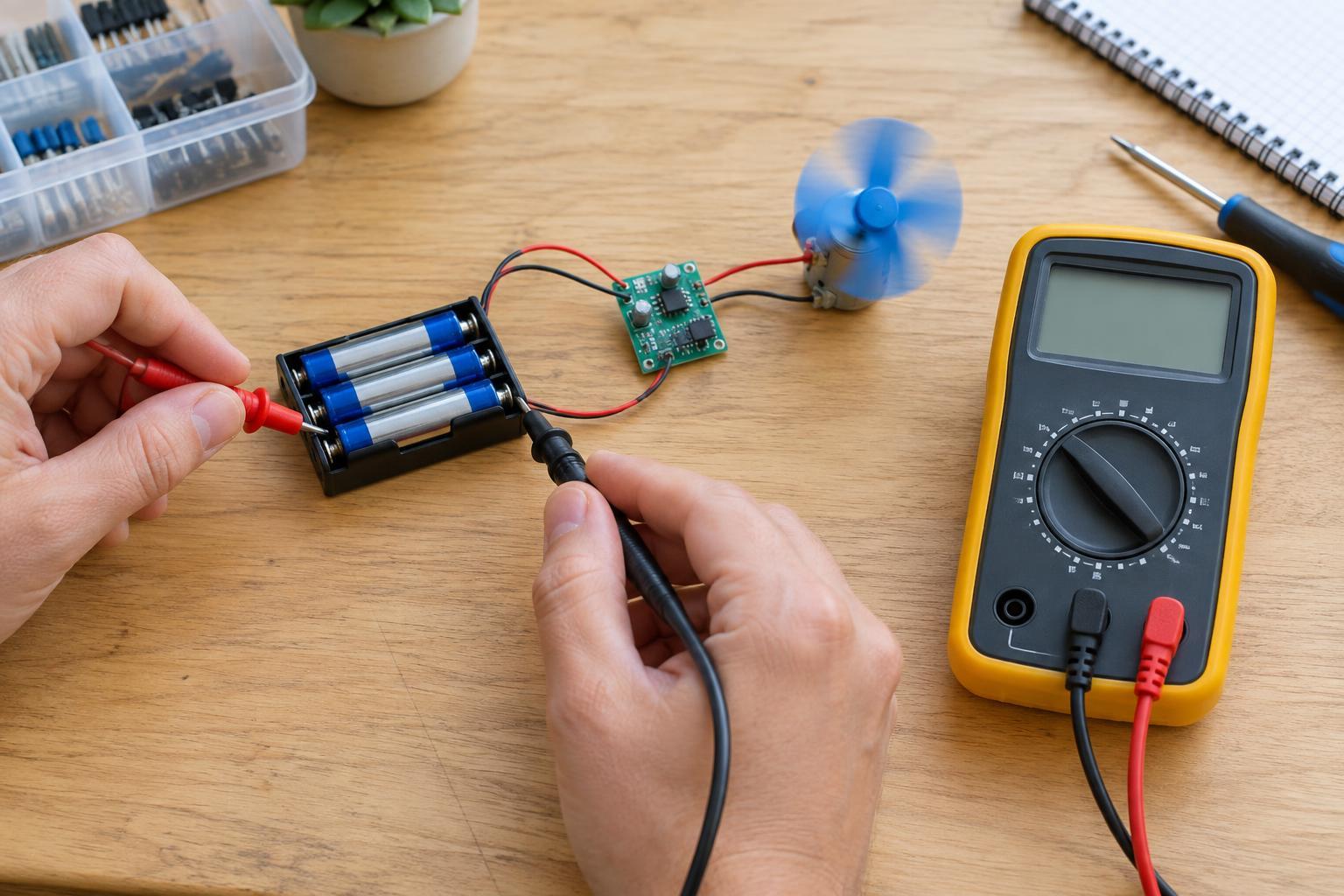
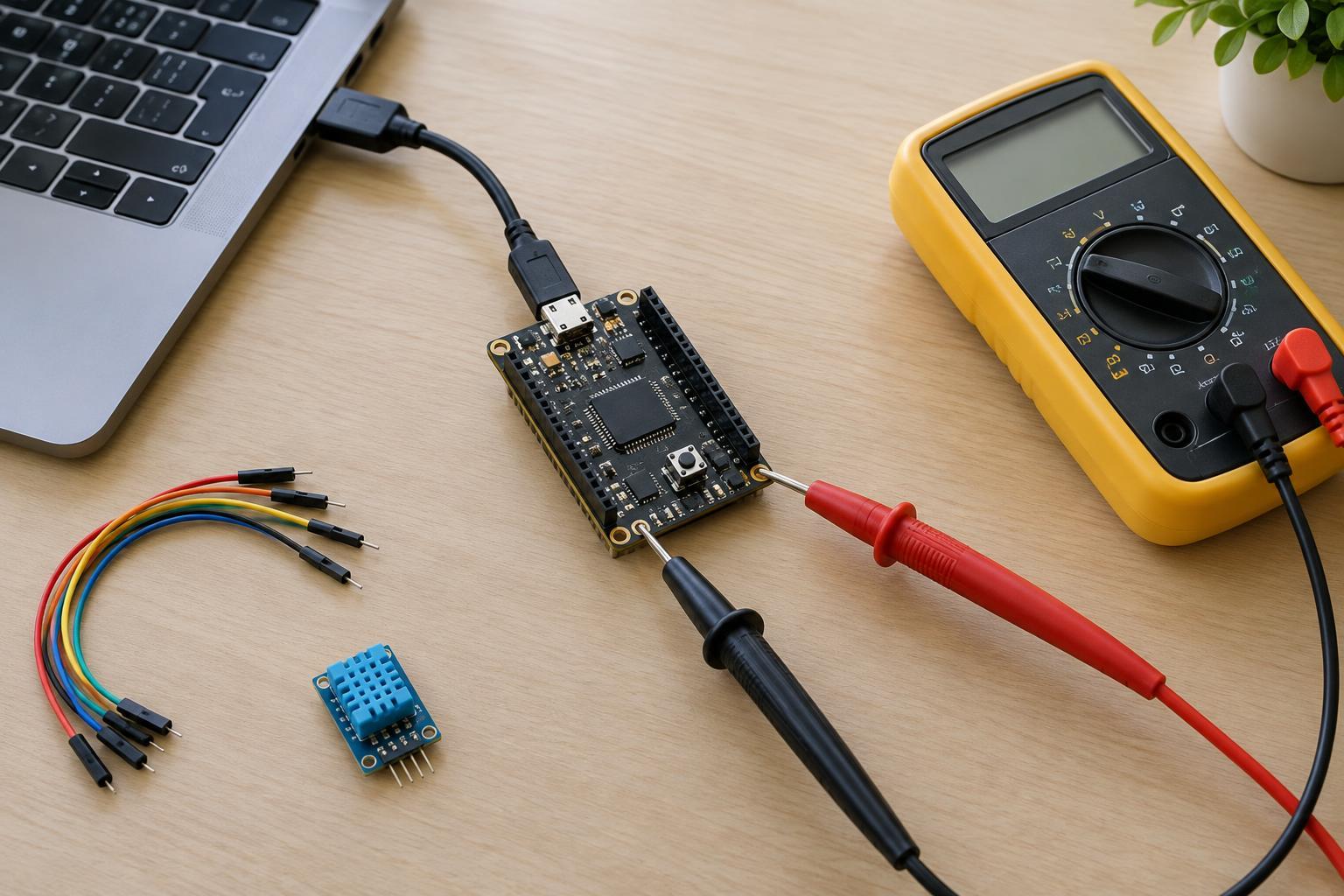
Find the board’s documented input voltage and identify its ground and supply test points before measuring anything. With a multimeter set to DC voltage, measure at the board while it is powered, taking care not to bridge neighboring pins with the probes. A voltage that is absent or drops sharply during startup points toward the supply, cable, connector, or an attached load. Do not assume that a board’s regulator can accept any voltage merely because its connector fits. Use only a supply and input pin appropriate for that specific board.
Look for a reset or startup condition
Most boards have a reset input that must be in the correct state for the processor to run. Press and release the reset button once and watch for any change in LEDs or computer detection. If a newly attached circuit connects to reset, disconnect it and try again. With power removed, a visual check may reveal a stuck button, displaced jumper, or solder bridge. If the board documentation gives an expected reset-pin voltage, a careful powered measurement can help determine whether reset is being held active.
Some microcontrollers also read particular pins when they start to select a boot mode. A switch, sensor, or pull resistor on one of these pins can send the board into a programming mode instead of the application. The relevant pins and required states vary by board, so consult its pinout rather than guessing. Test the bare board before reconnecting anything to a startup pin.
Verify the computer and firmware settings
If the board has power but will not accept a program, confirm that the development tool has the correct board model, processor variant where applicable, and connection port selected. Check any documented settings for upload method, bootloader, or USB mode. A board that uses a separate USB-to-serial interface may appear as a computer port even when the main processor is not running; conversely, a board with USB handled by its firmware may disappear from the port list when that firmware fails.
Try uploading a small, known-good example intended for the exact board, such as an LED blink program, without external wiring. Note whether the failure occurs before the upload starts, during connection, or after programming finishes. If programming succeeds but the expected LED does not blink, check that the example targets an LED actually present on the board. For serial output, select the port associated with the board and match the program’s serial speed. No text on the screen alone does not prove a boot failure.
Reconnect the project one part at a time
Once the bare board runs, add the project’s parts back individually, powering down between wiring changes. Check polarity, ground connections, supply requirements, and whether a module is connected to a reset or startup pin. Watch for the precise addition that causes startup to fail. This is more informative than changing the power source, firmware, and wiring at the same time.
If the bare board still does not respond after suitable power, a known-good cable, correct settings, and a simple test program, record the measurements and error messages you observed. Compare them with the board’s documentation or ask for help using those details. A systematic record can distinguish a damaged board from a configuration problem without repeated, risky trial and error.