Choose a compatible display and controller
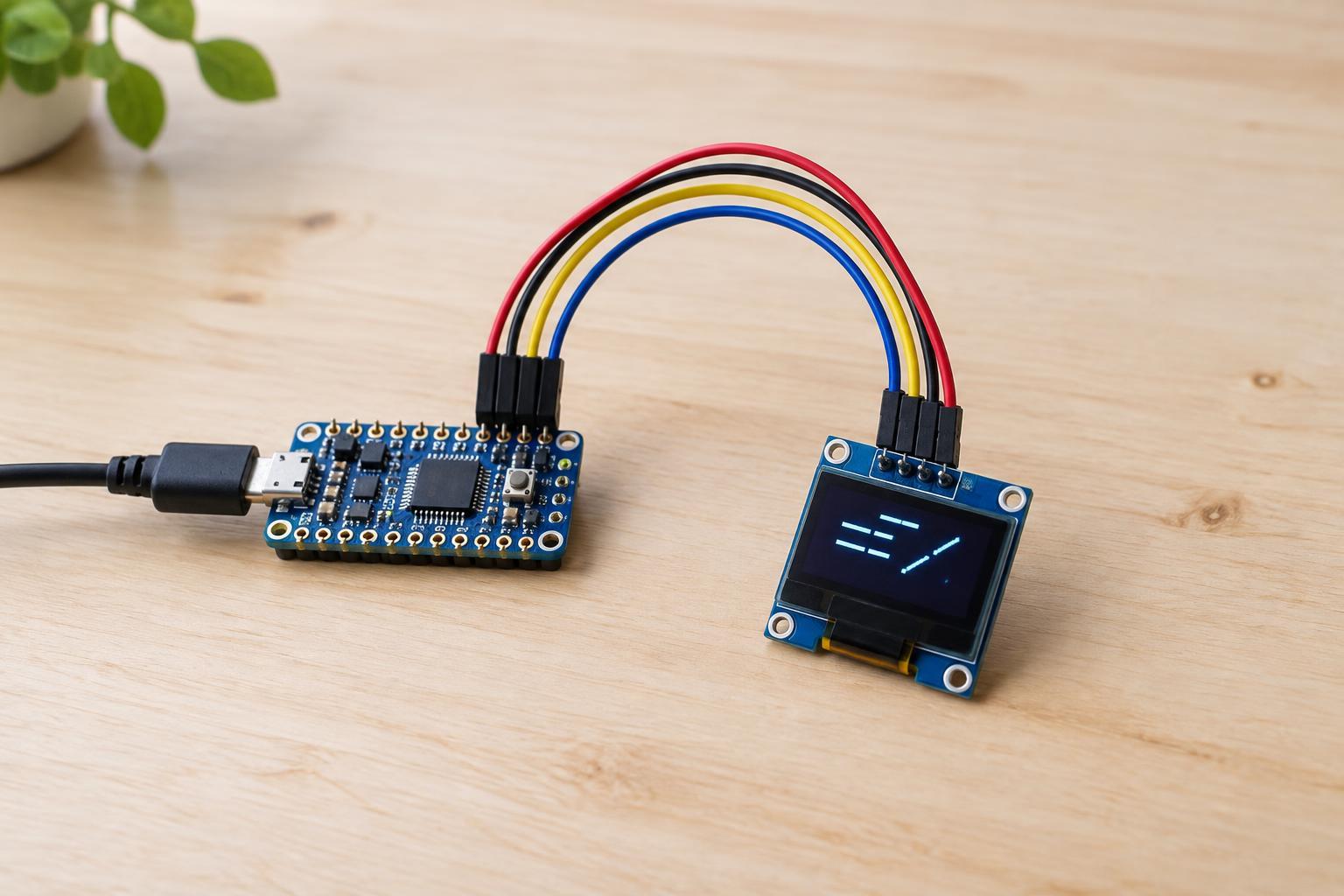
A small OLED can show labels, sensor readings, or status messages without taking up many microcontroller pins. This project uses an Arduino-compatible microcontroller that operates at 3.3 V and a four-pin I2C OLED module with an SSD1306 controller. The example sketch assumes a 128 × 64-pixel display. Check the module’s description or markings before starting: a different resolution or controller may need different software.
You will need the board, the OLED module, jumper wires, and a suitable USB connection for programming. Install the Adafruit GFX and Adafruit SSD1306 libraries in your Arduino-compatible development environment. This example is intended for a powered-off, low-voltage circuit on a workbench. Do not connect it to mains wiring or an unidentified power source.
Wire the four connections
With power disconnected, connect OLED GND to board GND and OLED VCC to the board’s regulated 3.3 V output. Connect OLED SDA to the board’s SDA pin and OLED SCL to its SCL pin. Use the pins identified by your particular board’s pinout; their physical positions vary. Check the display module’s pin labels rather than assuming that all four-pin modules use the same order.
I2C uses pull-up resistors on SDA and SCL, and many display modules already include them. Before connecting a module, confirm that its power requirements and I2C pull-ups are compatible with 3.3 V operation. A 3.3 V microcontroller pin should not be exposed to a signal pulled up to 5 V. If you cannot establish the module’s electrical requirements, choose one clearly specified for 3.3 V use instead.
Upload a text example
Select your board and port in the development environment. The following sketch uses the board’s default Wire I2C pins, creates a display object for 128 × 64 pixels, and tries the common I2C address 0x3C. Paste it into a new sketch and upload it:
#include <Wire.h> #include <Adafruit_GFX.h> #include <Adafruit_SSD1306.h> Adafruit_SSD1306 display(128, 64, &Wire, -1); void setup() { Wire.begin(); if (!display.begin(SSD1306_SWITCHCAPVCC, 0x3C)) { while (true) { } } display.clearDisplay(); display.setTextSize(1); display.setTextColor(SSD1306_WHITE); display.setCursor(0, 0); display.println("Hello, OLED!"); display.display(); } void loop() { }
The text-drawing commands change a buffer in the microcontroller’s memory; display.display() sends that buffer to the screen. Without that final call, the message will not appear. The -1 in the display constructor indicates that this example does not use a separate OLED reset pin. Once the message works, try changing the text or cursor position and uploading again.
Work through a blank screen
First, disconnect power and recheck VCC, GND, SDA, and SCL against the labels on both devices. A sketch that uploads successfully only confirms communication with the microcontroller, not with the display. Also confirm that the sketch’s 128 × 64 dimensions and SSD1306 library match your module.
If the wiring looks right, the display may use address 0x3D rather than 0x3C. Change the address in display.begin() and try again, or use a simple I2C scanner sketch to find which address responds. A scanner response shows that a device acknowledged an address; it does not prove that the selected display library is correct. If your board requires explicit I2C pin selection instead of its default pins, consult its board documentation before changing the Wire setup.
Finally, check the supply voltage while the circuit is operating if you have a multimeter and know how to use it safely on low-voltage circuits. Loose jumpers and an unsuitable supply can cause intermittent results. Make one change at a time so you can tell which correction helped. Once the text is stable, you have a useful starting point for a low-voltage project that displays short messages or measurements.