What this project teaches
An onboard LED gives you a visible way to test a microcontroller’s digital output. Your program sets an output to one of two logic states, waits, then changes it. Repeating those steps makes the LED blink. Along the way, you can confirm that your computer can build a program, communicate with the board, and run code on it.
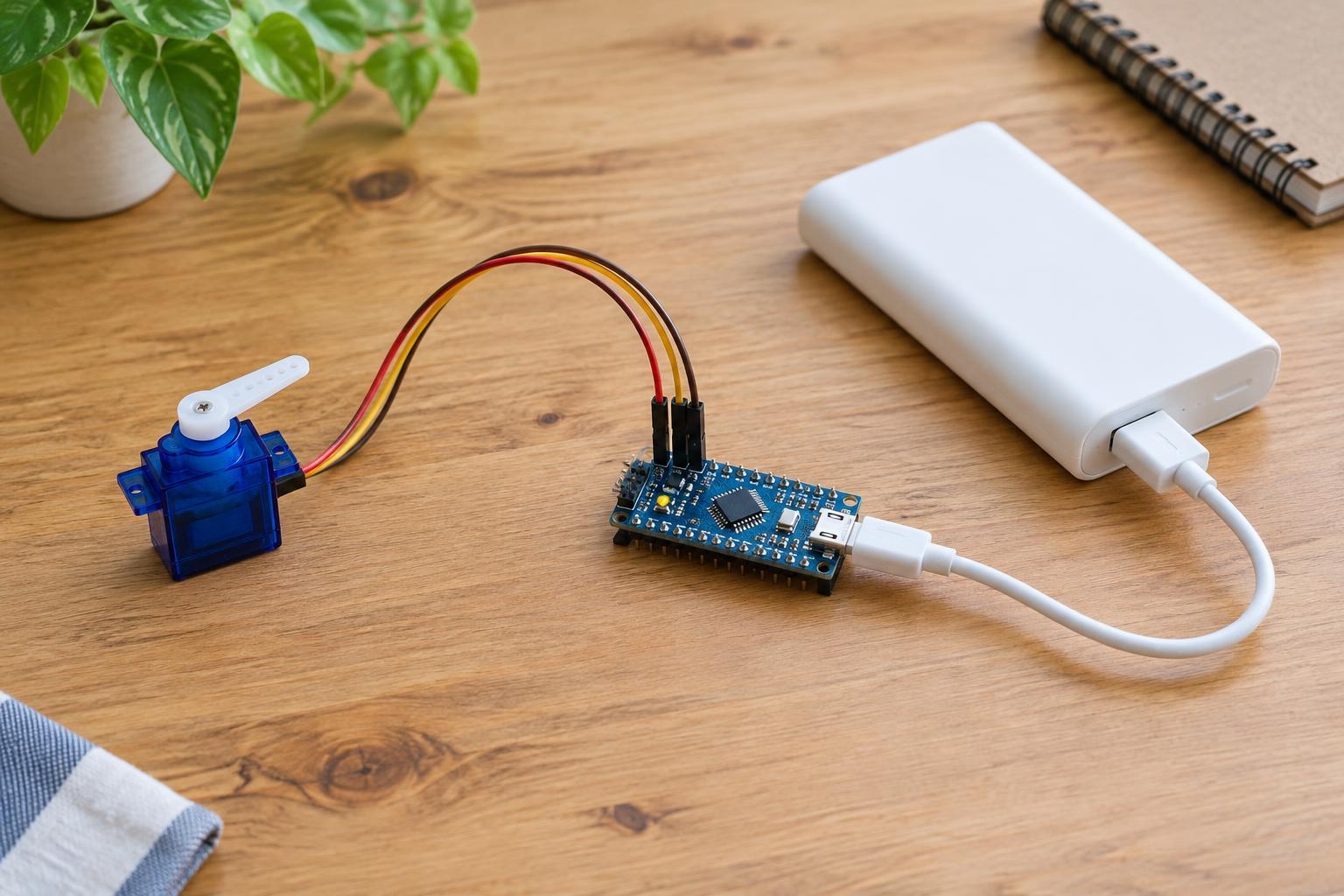
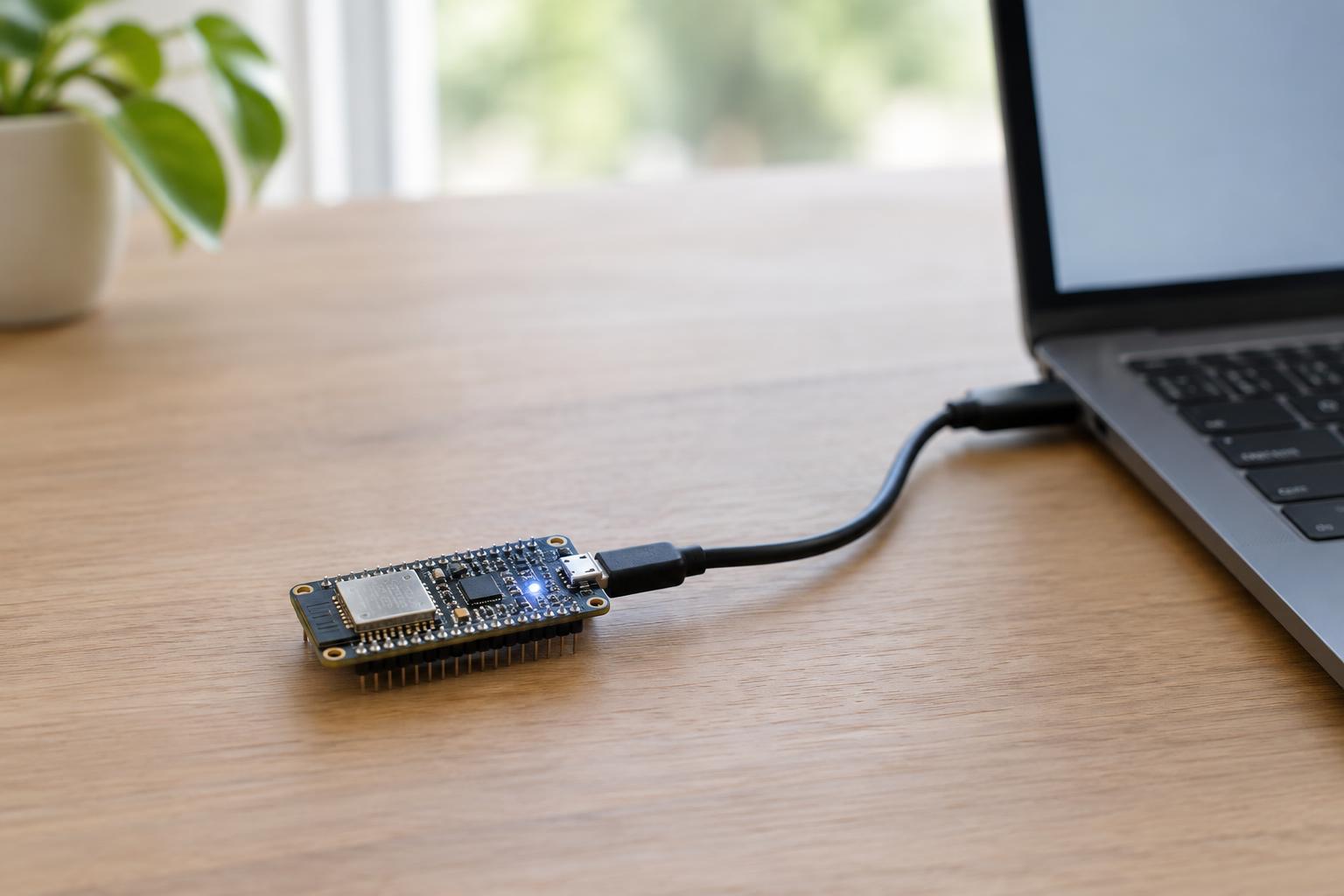
This project is for a 3.3 V microcontroller development board with a programmable onboard LED and a supported programming connection, commonly USB. Check the board’s documentation before starting: some boards have a power LED that cannot be controlled by code, while others have a separate user LED. You need the board, a suitable data-capable cable, a computer, and the development software recommended for that board. No breadboard or external components are needed.
Set safe limits before connecting the board
Use only the power and programming method specified for your particular development board. A board that runs its microcontroller at 3.3 V may accept power through a designated USB connector, but that does not mean every pin can safely receive USB voltage. Do not connect a power source directly to a GPIO pin, and do not connect the board to household mains wiring or an unknown circuit.
Keep the board on a dry, nonconductive surface and inspect it for loose metal objects or damaged connectors before plugging it in. This exercise does not require touching pins while the board is powered. If the board becomes unusually hot, disconnect it and check its documentation and connections before trying again. The existing onboard LED circuitry is already part of the board; you do not need to add an LED or choose a resistor for this project.
Write and upload a blink program
The example below uses an Arduino-compatible development environment. Select the correct board definition and connection port according to your board’s instructions. The name LED_BUILTIN is supplied by many board definitions and points to a designated LED pin. If your board package does not define it, look up the documented user-LED pin and substitute that pin identifier rather than guessing.
Enter this sketch as code in your editor: void setup() { pinMode(LED_BUILTIN, OUTPUT); } void loop() { digitalWrite(LED_BUILTIN, HIGH); delay(500); digitalWrite(LED_BUILTIN, LOW); delay(500); }
Build and upload the sketch using your environment’s normal controls. The first line in setup configures the LED pin as an output. In loop, digitalWrite selects a logic state and delay pauses for 500 milliseconds before the next change. Once the upload succeeds and the program begins running, the LED should change state about twice per second. A few boards use their user LED during startup or upload, so watch what happens after the program starts rather than relying on flashes seen during programming.
Understand HIGH, LOW, and active-low LEDs
For a typical 3.3 V GPIO output, HIGH means the pin is driven toward the board’s 3.3 V logic level, and LOW means it is driven toward ground. These are logic states, not instructions to connect anything to a pin. The amount of current a pin can safely supply or absorb depends on the specific microcontroller and board; this project avoids that design question by using the onboard circuit.
An LED may be wired so the GPIO pin supplies current when it is HIGH. It may instead be wired between the board’s supply and the pin, so it lights when the pin is LOW. That second arrangement is called active-low. In either case, the example still makes the LED blink; only the phase changes. If the LED turns off during the HIGH portion, your program may be working exactly as intended.
Troubleshoot, then try one small change
If nothing blinks, first confirm that you identified a programmable LED rather than a power indicator. Check the selected board and port, the upload result, and whether your cable supports data rather than charging only. Then check your board package’s LED pin definition and any setup steps in the board documentation. A successful upload is a useful clue, but it does not prove the LED pin was identified correctly.
When the basic sketch works, change both delay values from 500 to 1000, upload again, and compare the slower blink. You can then give the HIGH and LOW portions different delays to make a short flash followed by a longer pause. Change one thing at a time: that habit makes it easier to connect what you see on the board with the instruction that caused it.