Start with the connection you can see
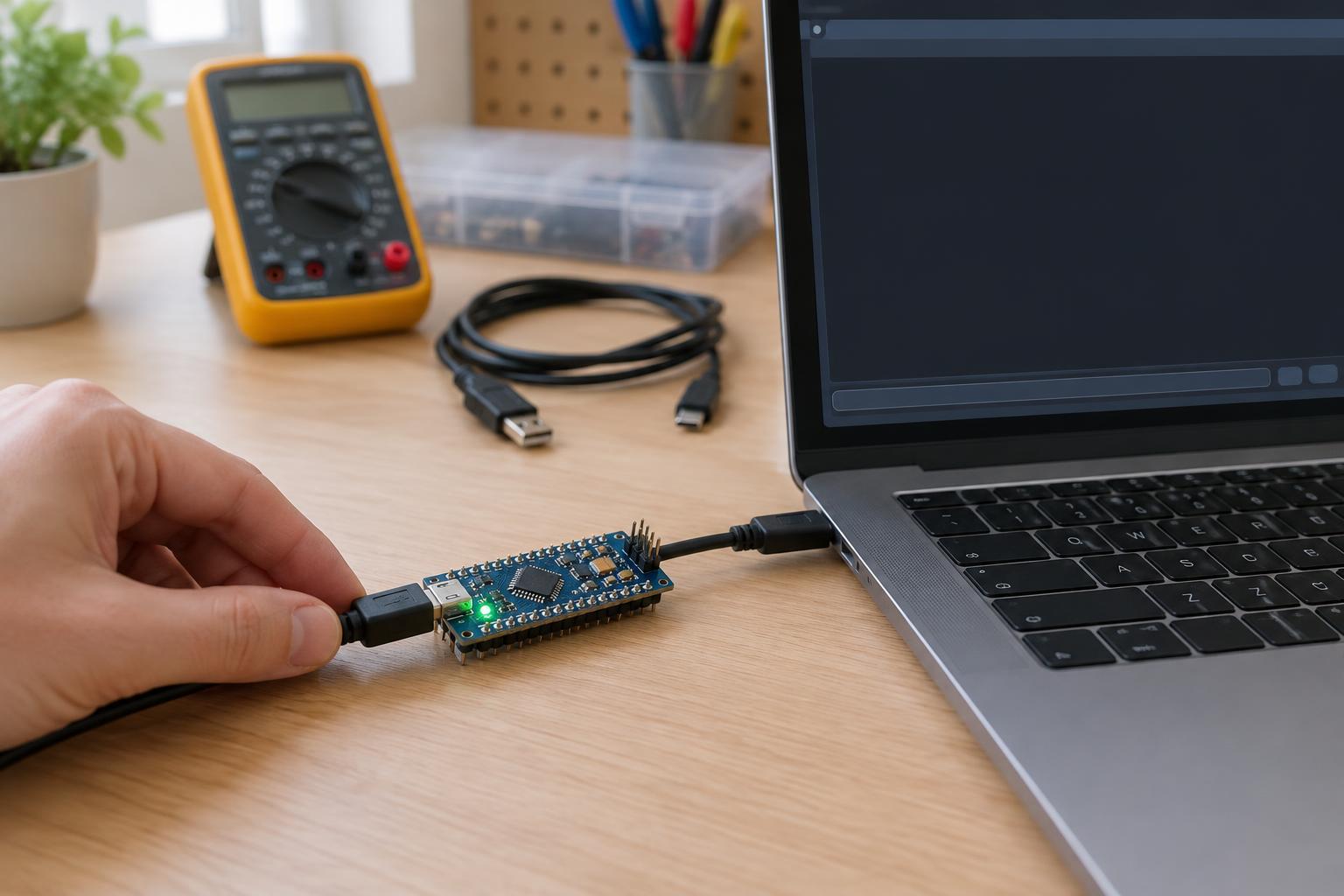
A blank serial monitor is frustrating because it gives so little information. The program might not be running, but the output might also be going to a different port or disappearing before the monitor opens. Start with checks that do not require changing the project: confirm that the board has power, the cable is seated, and the computer recognizes a device when you connect it.
If the board uses USB, try a cable known to carry data. Some cables provide power but no data connection, so an illuminated power indicator alone does not prove that serial communication is available. If the device does not appear on the computer, try another suitable cable or USB port before editing the code. Keep this process within low-voltage USB-powered equipment; do not open power supplies or troubleshoot exposed mains wiring.
Choose the port that belongs to the board
A serial monitor must connect to the correct port. Look at the available port list before and after plugging in the board. A newly appearing entry is a useful clue, although some computers retain port names or show several connected devices. In your development software, select the port associated with the board rather than assuming the last-used selection is still correct.
If the expected port never appears, the problem is earlier in the chain than the monitor settings. Check whether the board requires a USB driver, whether its USB connector is intended for programming or data, and whether the computer reports a connection error. If the port exists but will not open, close other terminal windows or development tools that might already be using it. Unplugging and reconnecting the board can help you identify the port again, but save any unsent work first.
Match the baud rate and output method
The baud rate in the monitor should match the rate selected by the program for that serial interface. A mismatch often produces unreadable characters rather than a completely blank window, but it is still worth checking. Find the serial initialization setting in your code and choose the same value in the monitor. If you are viewing messages from a bootloader or device firmware instead, those messages may use a different rate from your application.
Also check that the program actually sends text to the interface you opened. Some boards expose more than one serial interface, and a USB programming connection does not necessarily display output sent to separate transmit and receive pins. A minimal test program that initializes the intended interface, prints a short repeating message, and waits briefly between messages can help separate a connection problem from a problem elsewhere in a larger project.
Look for messages that happen too early
Startup messages can be easy to miss. A program may print once immediately after power-up, while the monitor takes time to open. On some boards, opening the monitor resets the program; on others, it does not. Leave the monitor open and use the board’s reset button, if it has one, to see whether the message appears. A repeating test message is even easier to observe because it does not depend on catching a brief startup moment.
If your program prints only during setup, add a short delay before that print while testing, or print a recognizable status message periodically. A delay is a diagnostic aid, not necessarily a permanent design choice: the final program should not rely on a person opening a monitor at exactly the right time. If output appears after these changes, restore the project gradually and note which event the original message depended on.
Narrow the fault without creating a new one
Once the port, speed, and timing are checked, reduce the setup. Disconnect optional low-voltage sensors or modules, then test the board with a simple message-printing program. Check the program’s upload result rather than assuming that an earlier version is running. If a simple program prints reliably but the full project does not, inspect conditions that control printing, long blocking operations, and any code that changes how the serial interface is used.
For a separate serial adapter connected to device pins, confirm the pin labels and voltage levels in both devices’ documentation before wiring them. Transmit and receive connections usually cross, and the devices need a shared signal ground, but a 5-volt signal can be unsuitable for a 3.3-volt input. Do not guess at connections or attach an adapter to unknown pins. A useful troubleshooting record is simple: note the cable, port, baud rate, test program, and whether output appeared after reset. That makes the next check more deliberate than another round of random setting changes.