What the pull-up resistor does
A microcontroller input needs a definite voltage to report a dependable HIGH or LOW. If a pushbutton is connected to an input but leaves it disconnected when released, the input can “float.” A floating input may change its reading when you touch a wire or move your hand nearby. A pull-up resistor prevents that by connecting the input gently to the 3.3 V supply.
In this circuit, a normally open pushbutton connects the input to ground only when pressed. With the button released, the resistor holds the input HIGH. When the button is pressed, the input reads LOW. This arrangement is called active-low: a LOW reading means the button is pressed. A common starting value for the external pull-up is 10 kΩ. It is high enough to limit current through the resistor when the button is pressed while still giving the input a clear default state in a short, ordinary breadboard setup.
Gather the parts and identify the connections
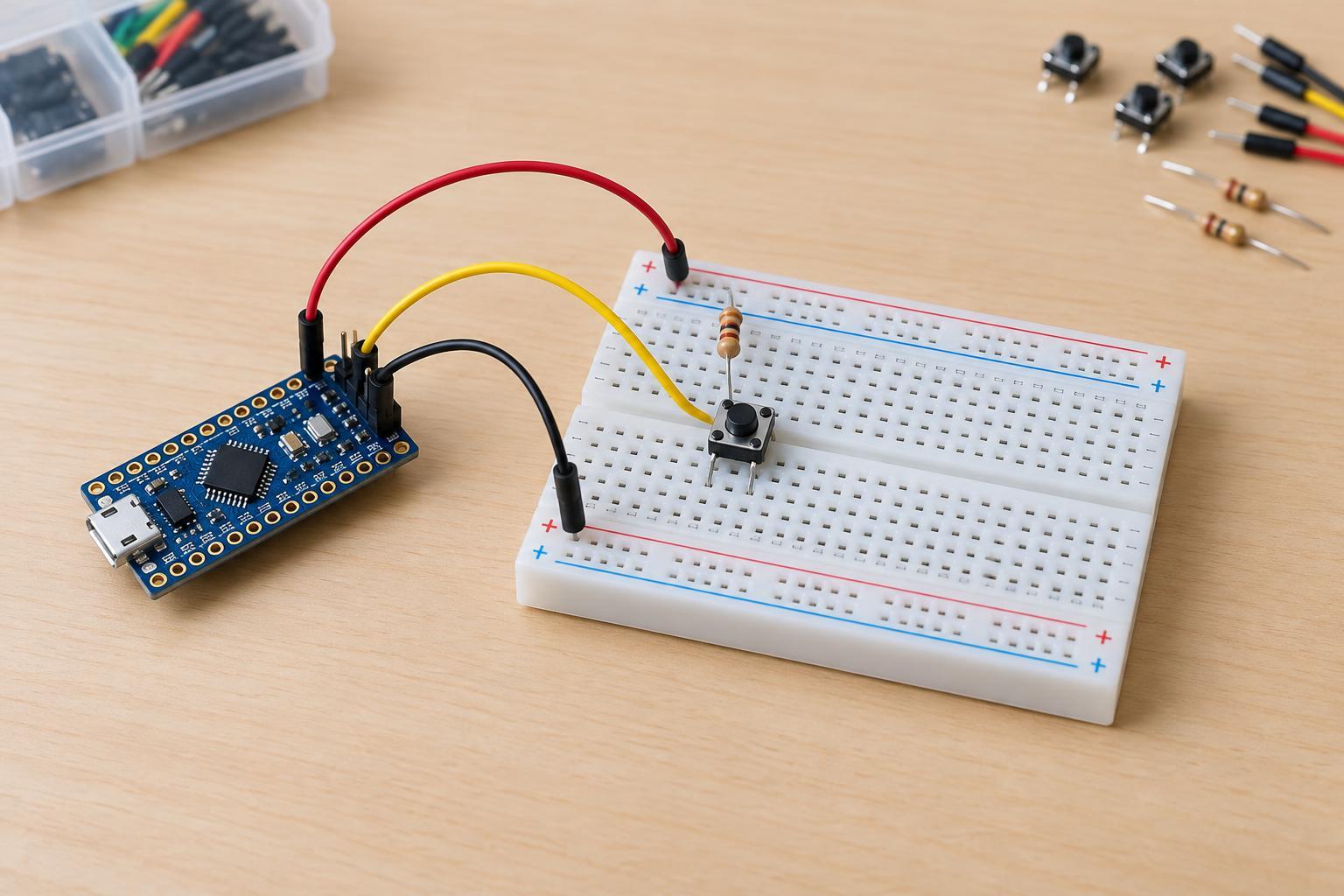
Use a 3.3 V microcontroller board, a normally open momentary pushbutton, one 10 kΩ resistor, a breadboard, and jumper wires. You also need an appropriate low-voltage power source for the board, such as its supported USB connection. Check the board’s pinout before choosing a GPIO pin: some pins have special startup functions or may not be suitable as general-purpose inputs.
For this project, use the board’s regulated 3.3 V pin, a ground pin, and the chosen GPIO input. Do not connect the input or pull-up resistor to a 5 V rail unless the board’s documentation explicitly permits that voltage on the chosen pin. Keep this project on the low-voltage side of the board; do not work with mains wiring, open a power supply, or connect the button circuit to an unknown external voltage.
Make the circuit with power disconnected
First disconnect power. Connect one end of the 10 kΩ resistor to the board’s 3.3 V pin and its other end to the chosen GPIO input. Connect one side of the pushbutton to that same GPIO input. Connect the other side of the button to ground. The input, resistor, and button meet at one electrical point. The intended path when pressed is 3.3 V, through the resistor and button, to ground; the resistor limits the current in that path.
A four-leg breadboard button can be misleading. On many common buttons, the two legs on each side are already connected internally, while pressing joins the two sides. Button layouts vary, so check the part’s markings or use a continuity tester with power disconnected. Place the button across the breadboard’s center gap if that makes its two switched sides easier to distinguish. Before powering up, confirm that there is no direct wire between 3.3 V and ground.
Read the button in software
Configure the chosen GPIO as a digital input. If your program offers an internal pull-up setting, leave it disabled when following this external-resistor example; the 10 kΩ resistor is providing the pull-up. Read the pin and treat HIGH as released and LOW as pressed. For example, the program’s decision can be expressed as: if the input is LOW, handle a press; otherwise, treat the button as released.
Test the circuit by observing pin readings in a serial monitor or by changing a board indicator in your program, if your board has one you can use safely. The reading should stay HIGH when the button is untouched and change to LOW while it is held. Start with a short button wire and keep it away from noisy wiring. An input that changes without a press may indicate a missing pull-up connection, an incorrect breadboard row, or an unintended pin choice.
Troubleshoot and account for switch bounce
If the input always reads LOW, disconnect power and check whether the button has been wired across two legs that are permanently connected, or whether the input is accidentally tied to ground. If it always reads HIGH, check that pressing the button really connects the GPIO point to ground. Also verify that the software reads the same GPIO you wired and that the ground connection reaches the board.
A mechanical button may briefly make and break contact several times during one press. This is called switch bounce. If one press triggers an action more than once, add a simple software debounce: after detecting a change, wait briefly and confirm that the new reading is stable before accepting it. Around 10–30 milliseconds is a useful starting interval to try, not a requirement for every switch. For a menu selection or counter, you may also want to act only when the reading changes from HIGH to LOW, rather than on every program loop while the button is held.