Decide whether to open it
Documentation begins before the first screw turns. Identify the gadget and its power source, then look for an accessible battery compartment and visible fasteners. If you have the product’s instructions, check whether they describe battery removal or user-serviceable parts. A small, battery-powered device with a removable battery and ordinary screws is a more suitable starting point than a sealed device.
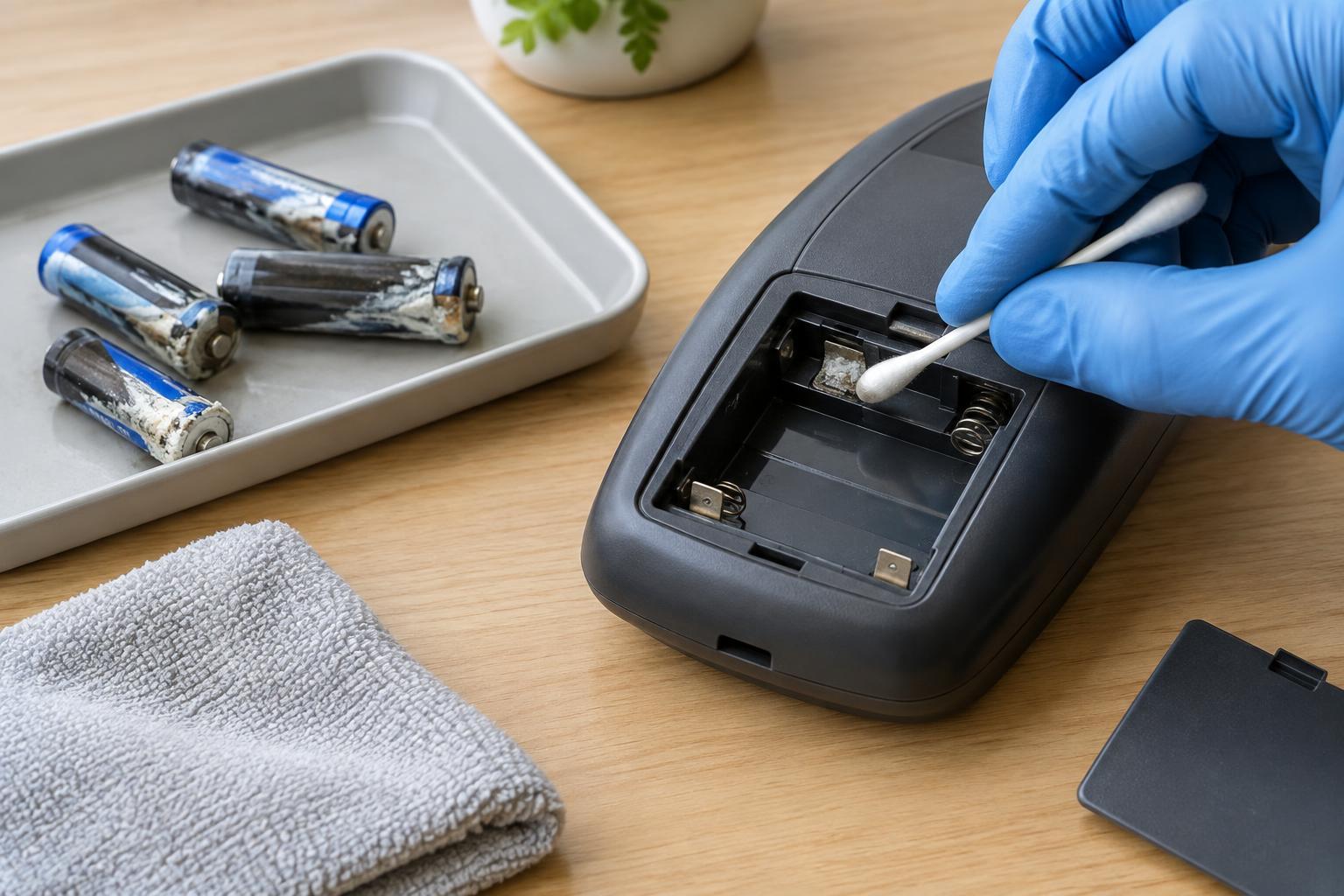
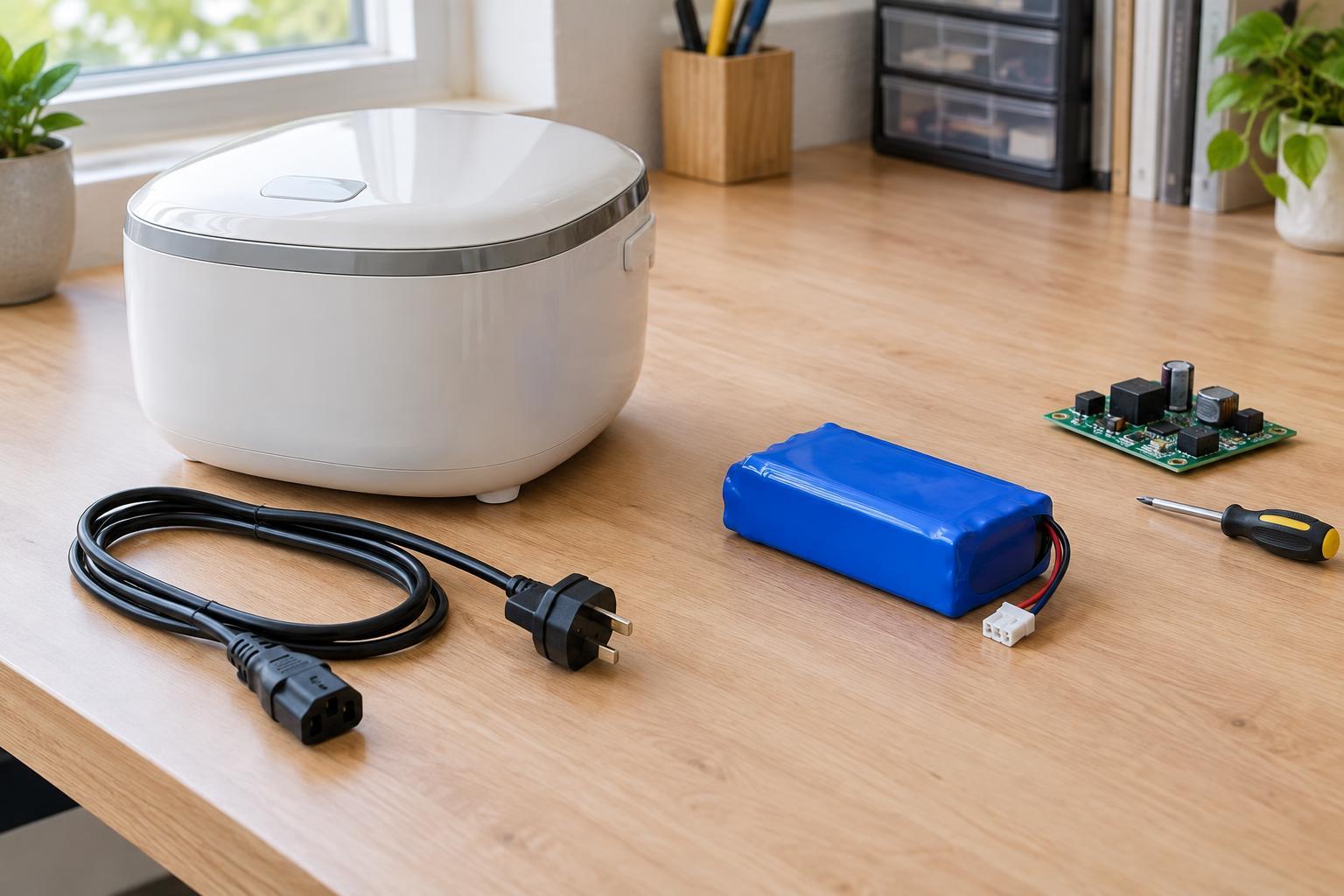
Switch the gadget off and disconnect any charger or external power. Remove the battery if it is designed to come out without opening the case. Do not open a device with a swollen, leaking, punctured, or unusually hot battery. Do not bend, pierce, or pry against a battery to reach other parts. If a case resists gentle opening, stop rather than forcing a tool into an unseen area. These steps concern small, low-voltage gadgets; devices connected to household mains power call for different precautions and are outside this guide.
Record the outside first
Before disassembly, take clear photos of every side of the gadget. Include the position of buttons, ports, covers, rubber feet, and any gaps where the case halves meet. Photograph the battery orientation and compartment markings if the battery is removable. An ordinary phone camera is enough if the images are well lit and in focus. A ruler or other familiar object beside the gadget can help show scale.
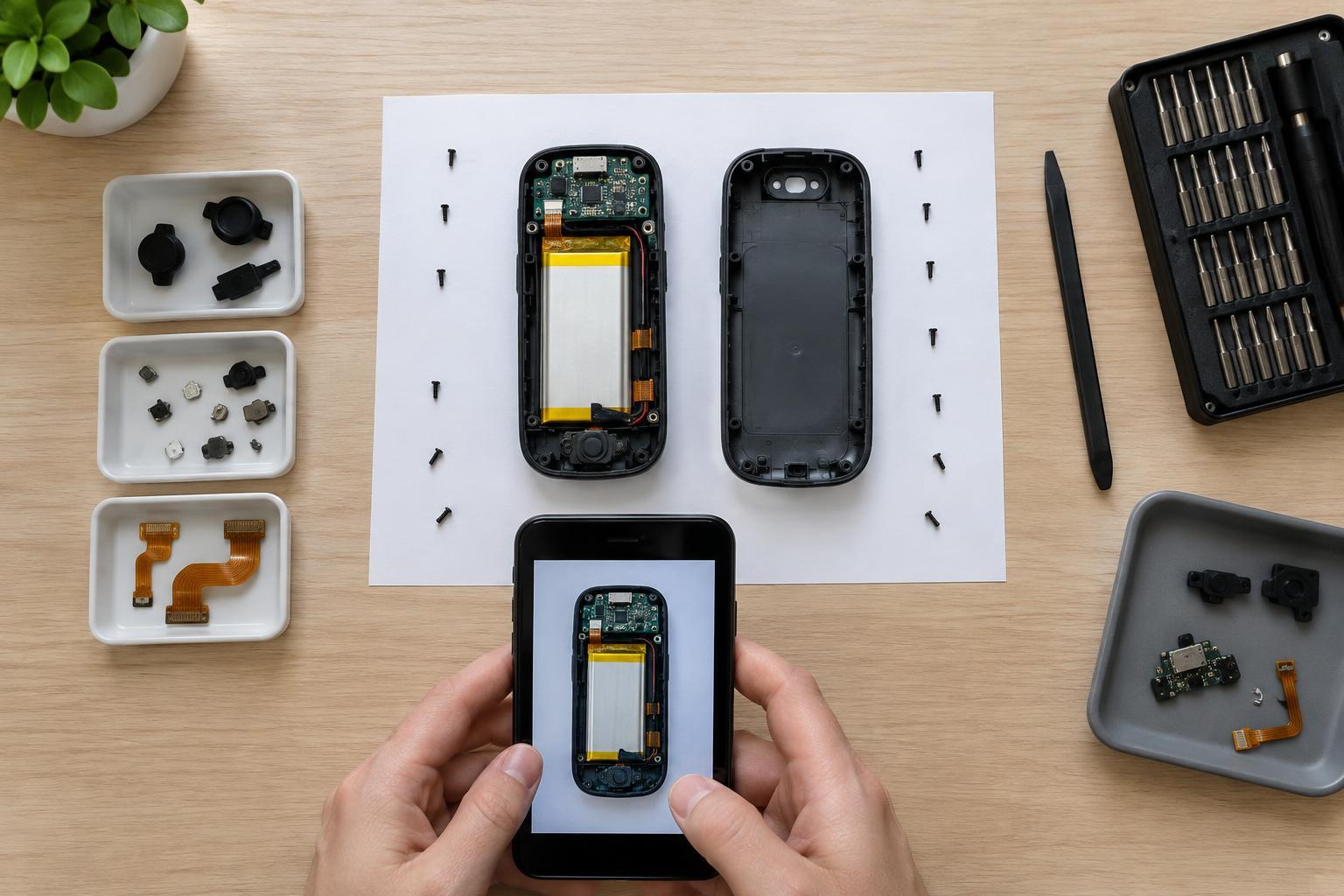
Set up a clean workspace with a shallow tray or small containers so loose pieces cannot roll away. Give the photo set a useful name, such as the device name and the part being inspected. If you are working on more than one gadget, keep their photos and containers separate. The goal is to create a record you can understand later, not to produce polished pictures.
Map screws as they come out
Screws that look alike may differ in length or thread. Before removing them, take a close photo showing each screw’s location. Then draw a simple outline of the case on paper and mark those locations. As each screw comes out, place it on the matching mark or in a labeled container. If you use tape to hold screws on a paper map, keep the tape away from delicate parts and battery contacts.
Record the order in which covers and brackets are removed. A note such as “two short screws under the rear cover; longer screw beside the battery compartment” is more useful than “removed three screws.” If a screw does not turn with gentle, correctly sized tool pressure, do not keep twisting: a damaged head can make reassembly harder. Check whether a fastener is hidden by a removable cover, but do not dig through glued-on parts merely to continue.
Photograph cables and connectors before moving them
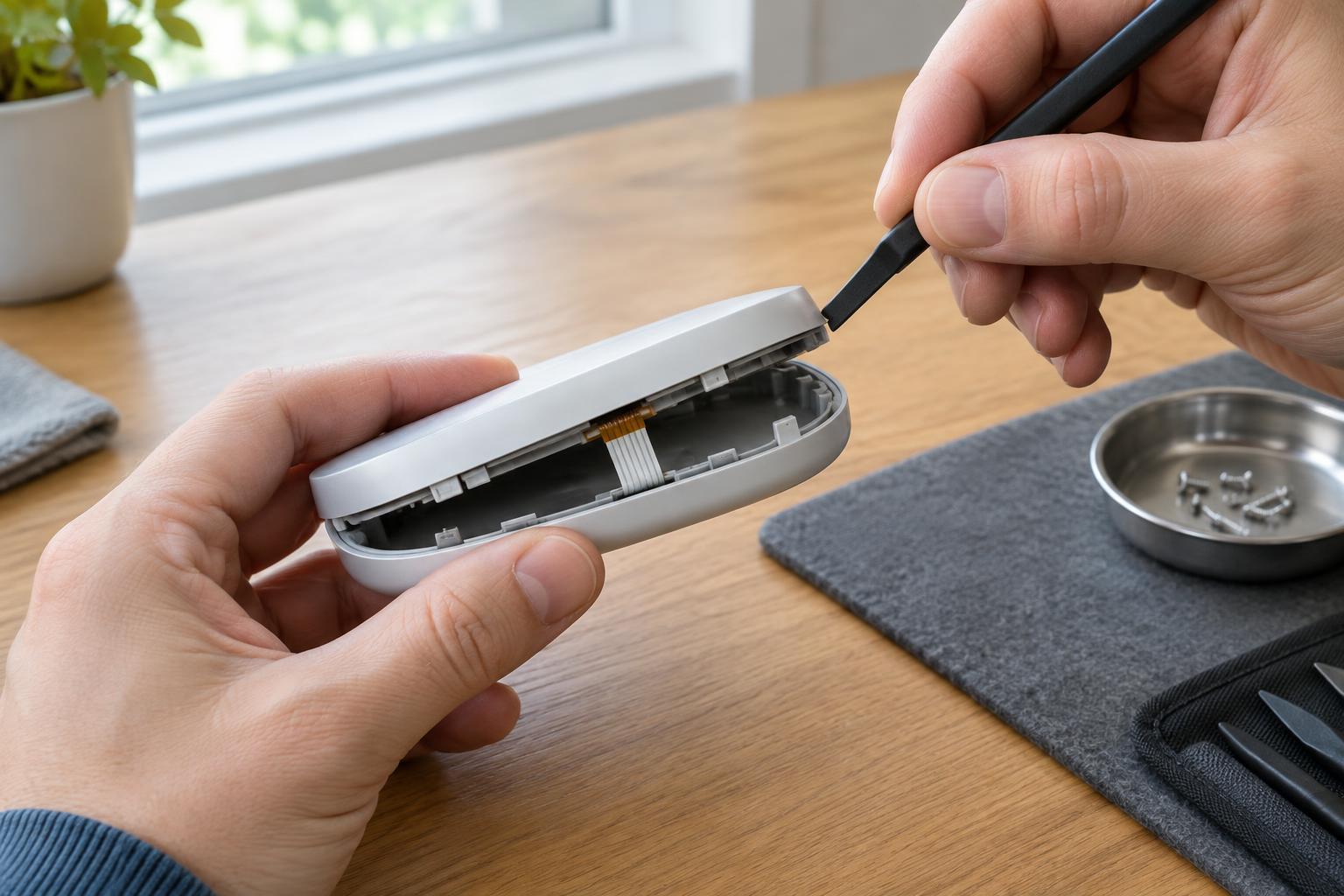
Once the case opens, pause. Take an overview photo before touching anything inside, followed by close-ups of each cable, plug, ribbon, and wire route. Make sure each image shows both where a cable begins and where it connects. If several connectors look similar, add small labels to your notes or photos: for example, “A: cable from speaker to board.” Do not place adhesive labels on fragile ribbons or tiny components.
Notice how wires pass around posts, clips, and screw holes. Their route may matter as much as their connection: a misplaced wire can be pinched when the case closes. Some connectors lift, some slide, and some have a locking flap. If the mechanism is not clear, stop and identify it before applying force. Pulling on wires or a ribbon instead of the connector can damage the connection.
Keep a reassembly trail
Work in small stages. After removing a part, photograph the newly exposed area and write down which side faced up and where any clips or spacers sat. Place each removed part in order, or use separate labeled containers for stages of the job. Note anything you find, such as a loose screw or a cable that was already disconnected, without assuming it caused the gadget’s problem.
When putting the gadget back together, follow the photos and notes in reverse order. Check cable routes before closing the case, and return each screw to its mapped location. Fasteners should seat without unusual force. If a part does not fit, reopen the case and compare it with your earlier images rather than pressing harder. Good documentation will not solve every fault, but it can prevent a simple inspection from creating a new one—and make a reusable gadget easier to keep in service.