How an e-paper image changes
An e-paper display is designed to remain readable without a constant stream of new frames. In a common electrophoretic panel, electrically charged pigment particles move within tiny display cells when the controller applies a sequence of voltages. Their positions determine which areas appear light or dark. Once positioned, the particles can often hold a useful image even when the display is no longer being driven.
That behavior makes e-paper well suited to information that changes occasionally, such as a room label, a sensor reading, or a simple status screen. It also explains why it behaves differently from an LCD or OLED. A display update is not just a new set of pixels sent over a data connection: the controller must drive the panel through a suitable sequence, often called a waveform, to move the pigment reliably.
Why refreshes take time
A full refresh may clear or invert the display before drawing the next image. The visible flashing can look unnecessary, but it helps put the pigment into a more predictable state. A partial refresh changes only part of the image, or uses a shorter driving sequence. It can make an interface feel more responsive, but support varies by panel and controller, and repeated partial updates may leave visible remnants.
Refresh time depends on the panel, its size, the type of update, the controller settings, and the temperature. Pigment movement can become less reliable in the cold, so a display may need a different waveform or a longer update. Some color e-paper panels also require more involved updates than simple black-and-white ones. Rather than assuming a fixed refresh time, check the documentation for the exact panel and allow the controller to signal when it is ready for another command.
For a project, the most useful design question is often not “How do I make every update faster?” but “How often does this information need to change?” A once-a-minute sensor value may be a reasonable fit; a rapidly moving gauge usually is not. Updating only when a displayed value changes meaningfully can make the device easier to read while reducing unnecessary refreshes.
Power use: the panel is only part of the system
E-paper’s main power advantage is that the visible image generally does not require continuous panel drive. The update itself does consume energy, sometimes in a short burst as the electronics generate the voltages needed by the panel. More frequent updates therefore tend to use more energy, even though the image can remain visible between them.
A finished device can still draw power while nothing on the screen changes. Its microcontroller, wireless connection, sensors, voltage regulators, and display module may all contribute to idle consumption. Some modules need an explicit sleep or power-down command after an update. If battery life matters, measure the whole device during an update and while idle, rather than treating the display’s image retention as proof that the project uses no standby power.
Plan the update schedule around the job. A shelf label can usually wait much longer between changes than a sensor display used for a quick check. If the information must be immediately current at all times, e-paper’s update time and energy cost may make another display technology a better choice.
What causes image ghosting?
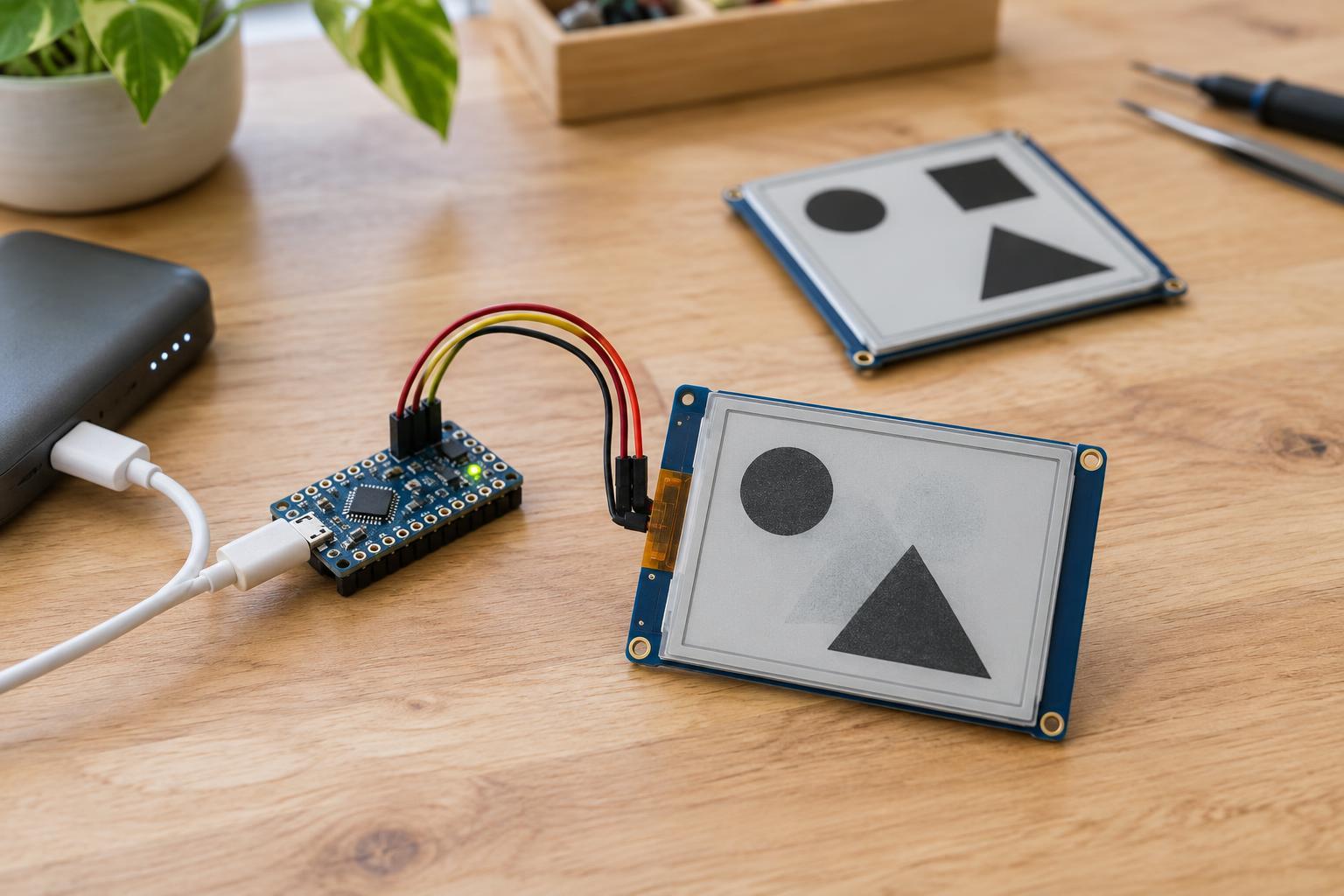
Ghosting is a faint trace of previous content that remains after an update. It is often most noticeable where dark text has been replaced by a light background. Pigment particles do not always return to exactly the same positions after a short update, so a partial refresh can leave some cells looking slightly darker or lighter than intended. Temperature, the panel’s update history, and the waveform used can affect the result.
A practical approach is to use partial refreshes when their speed is valuable, then perform a full refresh periodically to restore a cleaner image. The right interval depends on the panel and on how much ghosting the application can tolerate. A clock or counter that changes in one small area may benefit from partial updates; a page of new text may look better after a full one. Avoid assuming that a library’s partial-update feature works equally well with every display it can connect to.
Troubleshooting a low-voltage e-paper project
If refreshes stall, leave unexpected marks, or produce incomplete images, start with the exact panel and controller documentation. Confirm the required supply voltage, wiring, initialization settings, and whether the selected update mode is supported. Wait for the display’s busy signal or the library’s completion indication before sending the next image. A stable supply matters during the update burst, even if idle power is low.
Next, try a full refresh using a simple test pattern and compare the result at a comfortable room temperature. If a full refresh looks clean but repeated partial updates do not, the issue may be a limitation of that update mode rather than a wiring fault. Keep experiments within the module’s specified low-voltage connections, disconnect power before rewiring, and do not open a mains-powered product to investigate its display. These checks help separate software timing, power, and normal panel behavior without treating every faint afterimage as a failed screen.